AI image generator: draws a picture from a description in 40 seconds and edits it on request
The test was run in Russian: the requests and the AI's answers are translated here, and the screenshots show the Russian interface.
We tested how an AI image generator draws a picture from a description and edits it on request. We asked Yenisei to draw a New Year's bouquet for a post, edited the picture twice, and turned it into a product card. The first picture was ready in 40 seconds, each edit took less than a minute, and the card with Russian text took four minutes.
How to create a picture from a description with AI
The request was this:
Draw a picture for a flower studio's post: a New Year's arrangement of fir branches, red berries, and white roses in kraft paper, on a wooden table, soft daylight, no people and no text. Square format.
After 40 seconds, the AI showed the picture and saved it as a PNG file in the working folder. The size is 1024 by 1024 pixels.

Everything we asked for is there: the fir branches, berries, roses, and kraft paper. On its own, the AI added a mug, scissors, and a ball of twine.
How to edit a picture with AI
A finished picture almost always has to be edited: change one detail without losing the rest.
We wrote: "Replace the white roses with cotton stems. Leave the rest as it is." After 35 seconds, a new version arrived.
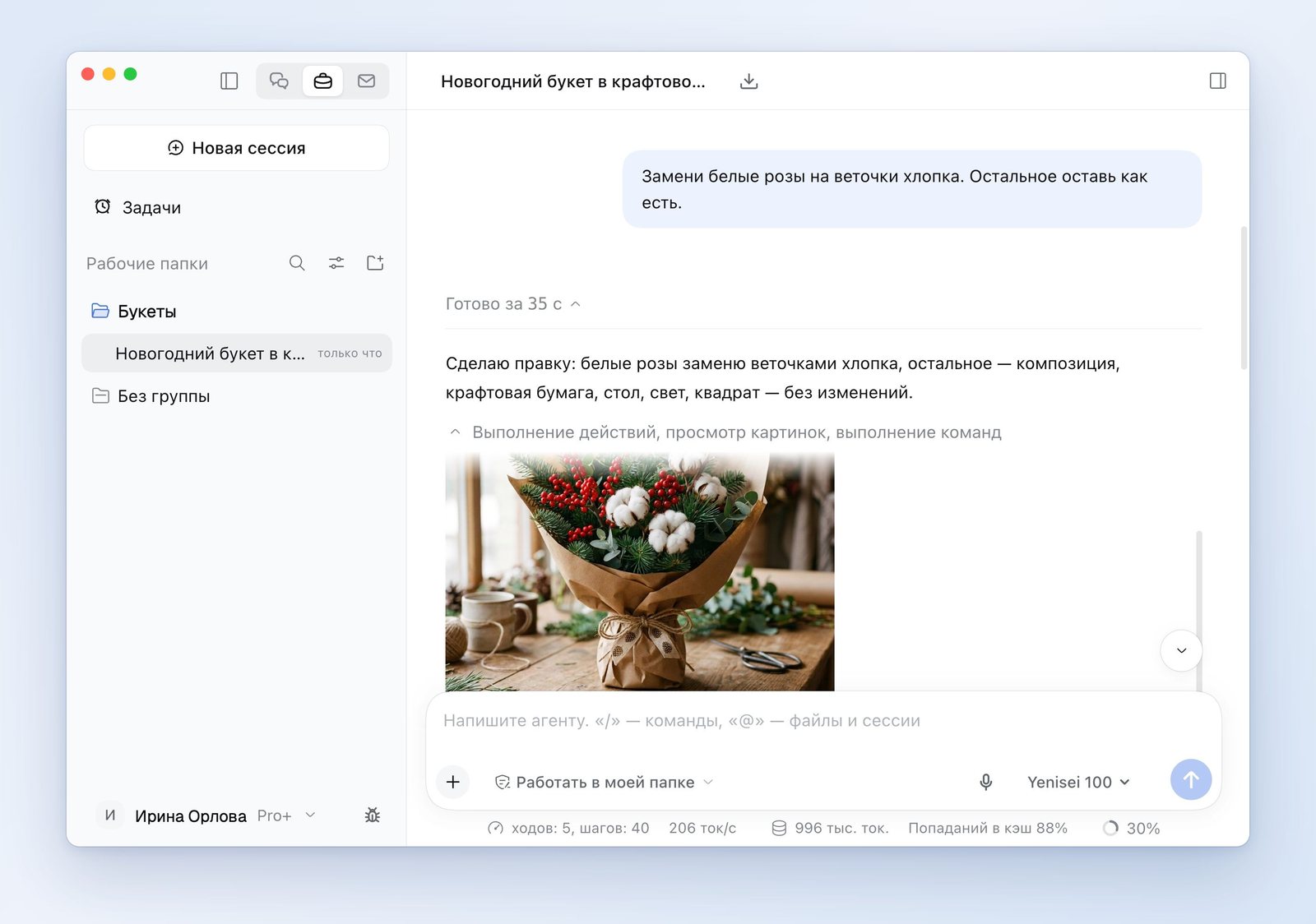
The bouquet now has cotton in place of the roses. The branches, berries, paper, table, and light stayed the same.
The second request: "Remove the mug and the scissors from the table." After 57 seconds, they were gone from the table.

The AI saved each version as a separate file. The earlier ones stayed in the folder, and you can go back to any of them.
How to make a product card with AI
The third request is harder: a vertical product card with two lines of text. AI models often garble Russian letters in pictures, so we expected typos.
Now turn this picture into a vertical product card for a marketplace: the same bouquet on a light background, with the text "New Year's bouquet" at the top and "Same-day delivery" at the bottom. Save it as a separate file, kartochka.png.
First, the AI offered to enable the specialist role «Менеджер маркетплейсов» ("Marketplace Manager"). We agreed.
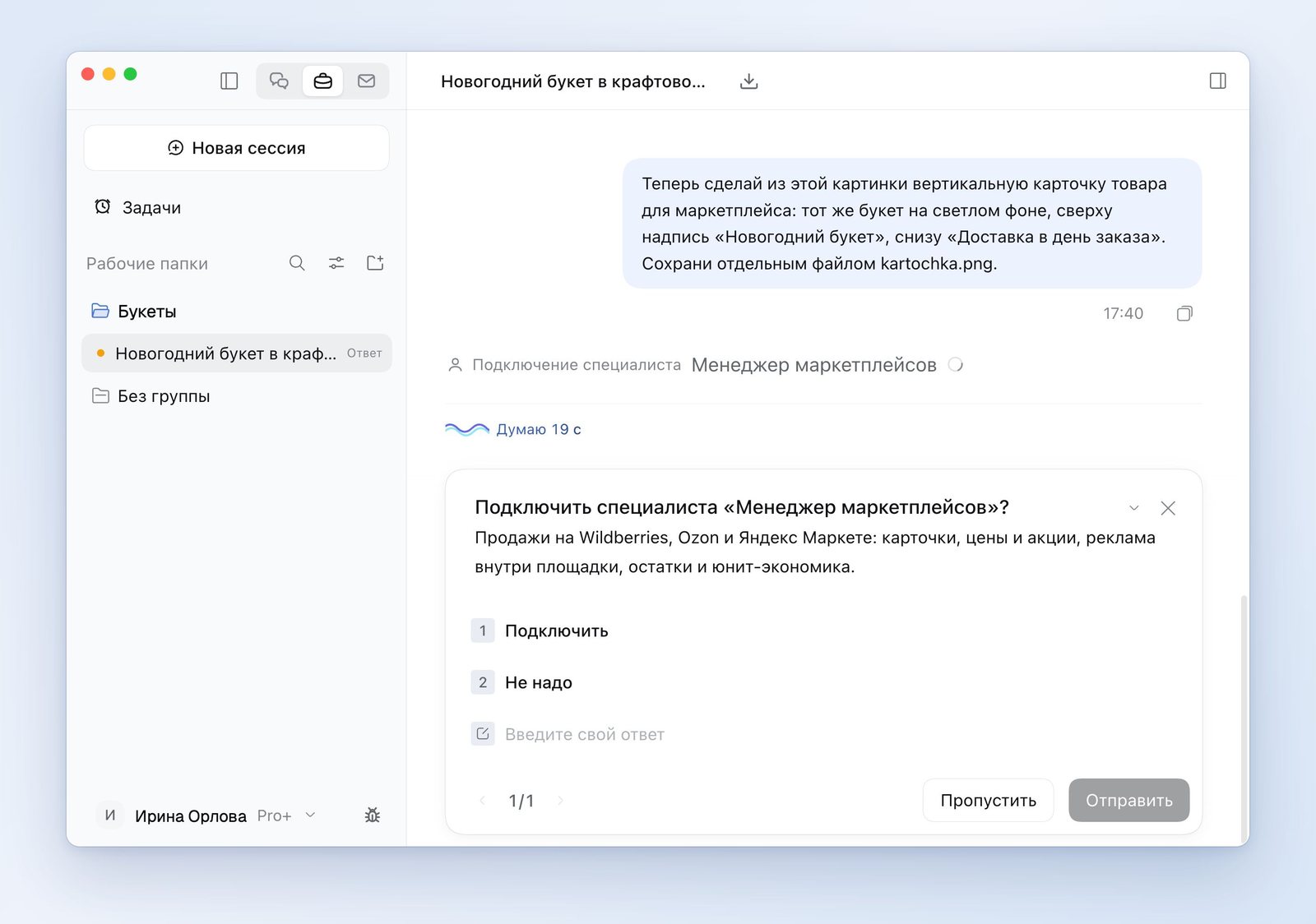
After 4 minutes 16 seconds, a card measuring 1200 by 1600 pixels was in the folder.

There are no typos. The AI set both lines of text in a font on top of the picture and said so itself. It redrew the bouquet for the card on a light background, and what's in the bouquet stayed the same.
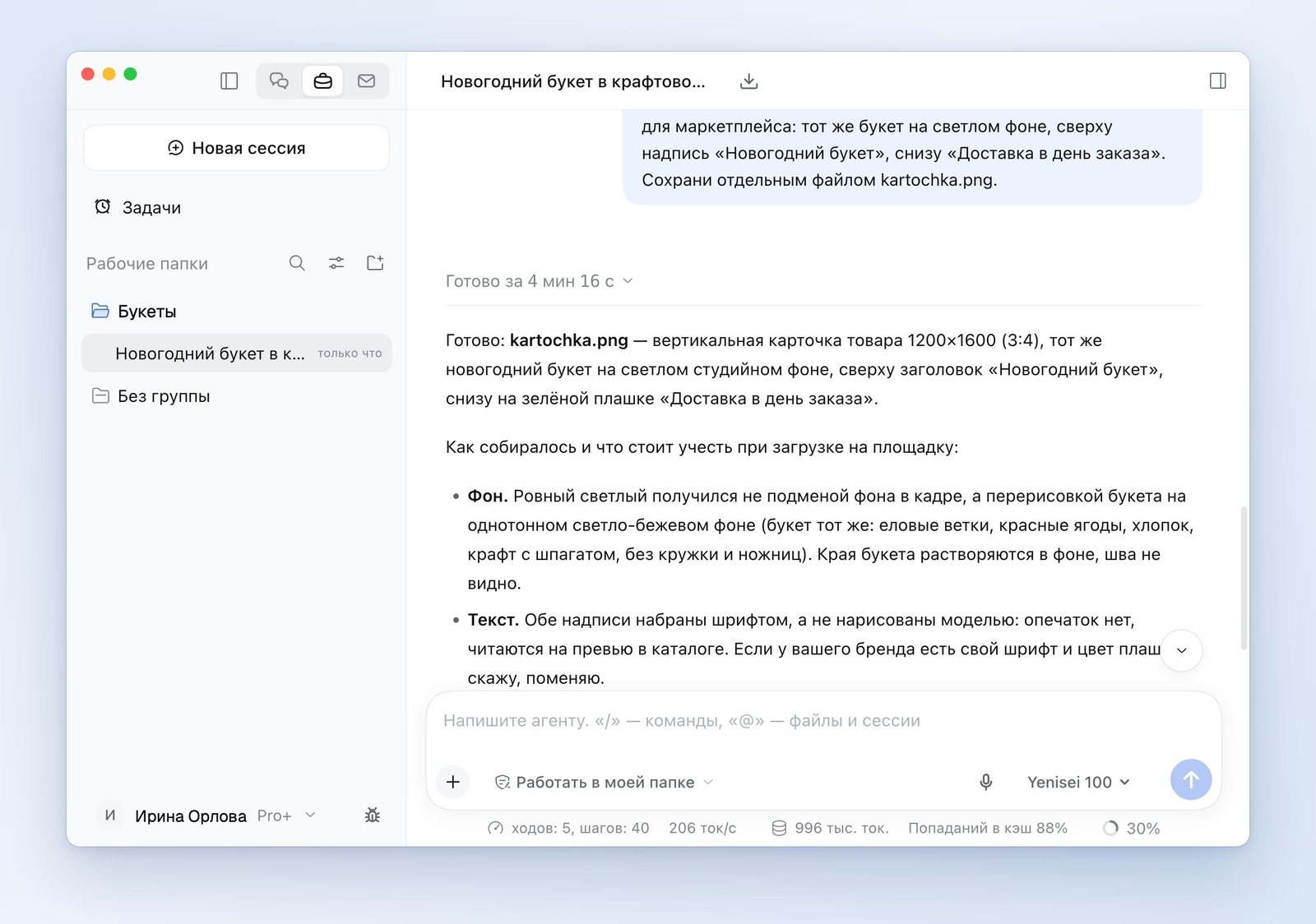
The same answer included a warning we had not asked for. A marketplace may reject the main photo if there is text on top of the product. The AI advised moving "Same-day delivery" to the second photo and checking the requirements in your account on the marketplace.
Where the AI got it wrong
- With every edit, the AI redraws the whole picture. After the second request, the ball of twine got bigger and moved toward the bouquet, and three berries appeared on the table.
- If you look closely, a faint rectangular border is visible around the bouquet on the card. The AI wrote that no seam was visible. There is one.
- The card took four minutes. A regular edit took 35 to 57 seconds.
- A size of 1024 by 1024 pixels is enough for a post. For printing a poster, it is too small.
Where to use the AI for pictures
We ran the test in the Yenisei Agent app. It is available for Windows, macOS, and Linux, and it saves pictures as files in a folder on your computer. In Yenisei Chat, the AI also draws and edits pictures, and you don't need to install anything for that: the chat opens in a browser. No VPN is required.
We tested the post and the product card ourselves. In the same way, with a description and edits, you can make a greeting card, a cover, a banner, or an avatar. We will cover those cases separately.
What to choose
- One picture for a post — the chat in your browser. There is nothing to install.
- A series of pictures with edits — Yenisei Agent. All the versions are kept as files in one folder.
- A product card — the app and the Marketplace Manager specialist role. Check the marketplace's requirements before uploading.
Try it on your own task
The agent works in the app for Windows, macOS and Linux. Sign in with your email and a code from the message; the basic plan is free.