AI photo editor: the AI removed the people from a beach photo in 17 seconds
The test was run in Russian: the requests and the AI's answers are translated here, and the screenshots show the Russian interface.
We tested an AI photo editor on a beach photo with about ten people relaxing in it. We asked Yenisei to remove all the people, then to keep only one couple, to turn day into sunset, and to remove the umbrellas and lounge chairs. We described each edit in one or two sentences. The first three took 17 to 23 seconds each.
The same AI drew the photo for the test: a sandy beach on a sunny day, the sea, beachgoers, umbrellas, and lounge chairs. It looks like an ordinary photo taken on a phone.
How to remove people from a photo with AI
The first request was this:
Remove all the people from this photo. Leave the beach, the sea, the umbrellas, and the lounge chairs as they are.
After 17 seconds, the AI showed a new version of the photo.
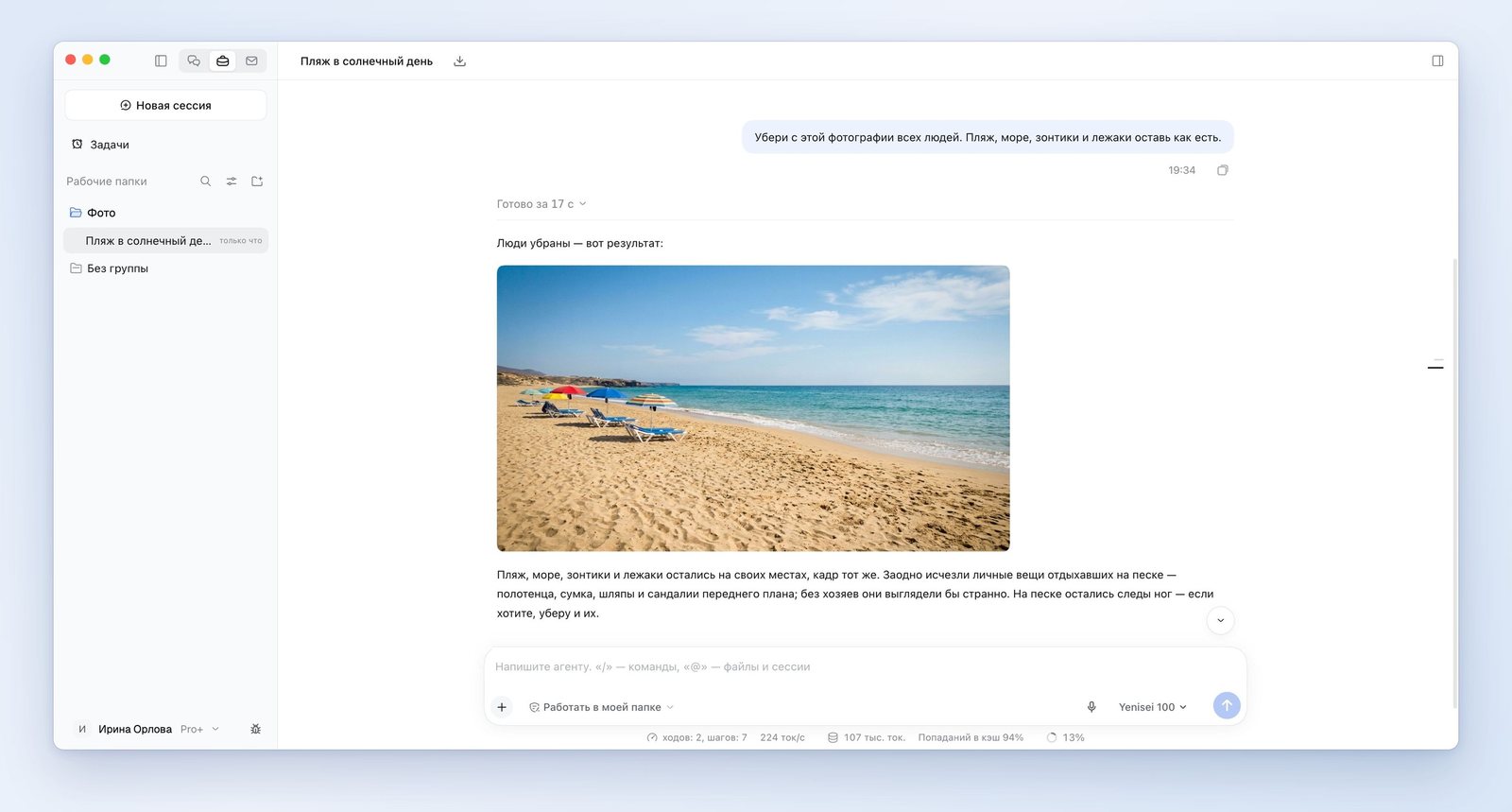
There are no people in the photo. The beach, the sea, the umbrellas, and the lounge chairs stayed where they were, and the camera angle is the same.
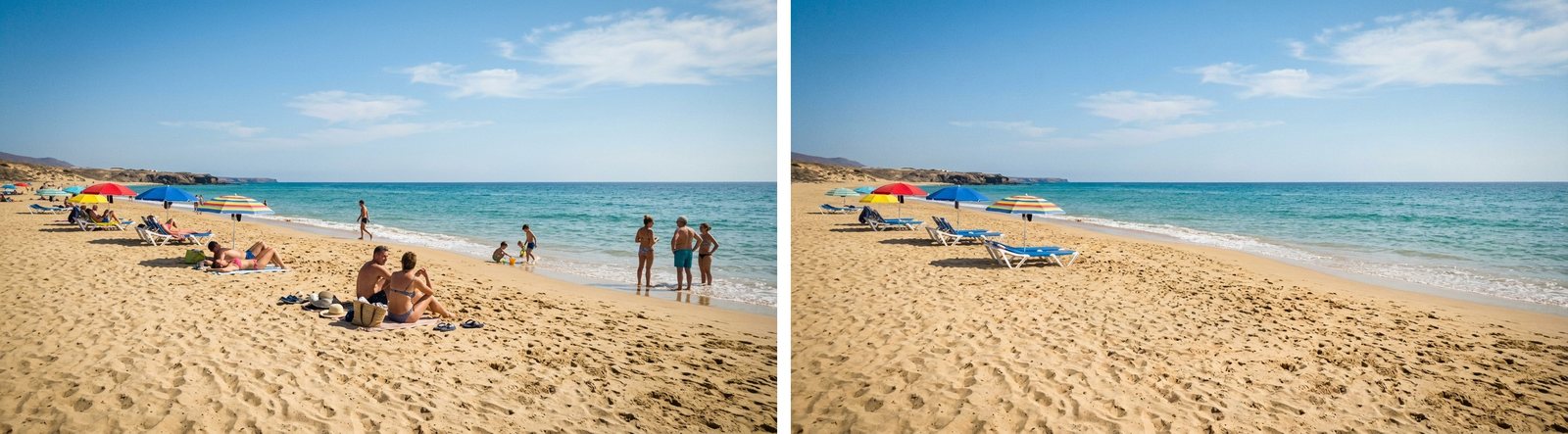
Along with the people, the AI removed their things: towels, a bag, hats, and sandals. It said so itself and explained that the things would look odd without their owners. It left the footprints in the sand and offered to remove them if needed.
How to remove strangers from a photo
More often you need something else: to remove the strangers from a photo and keep your own people. We went back to the original photo.
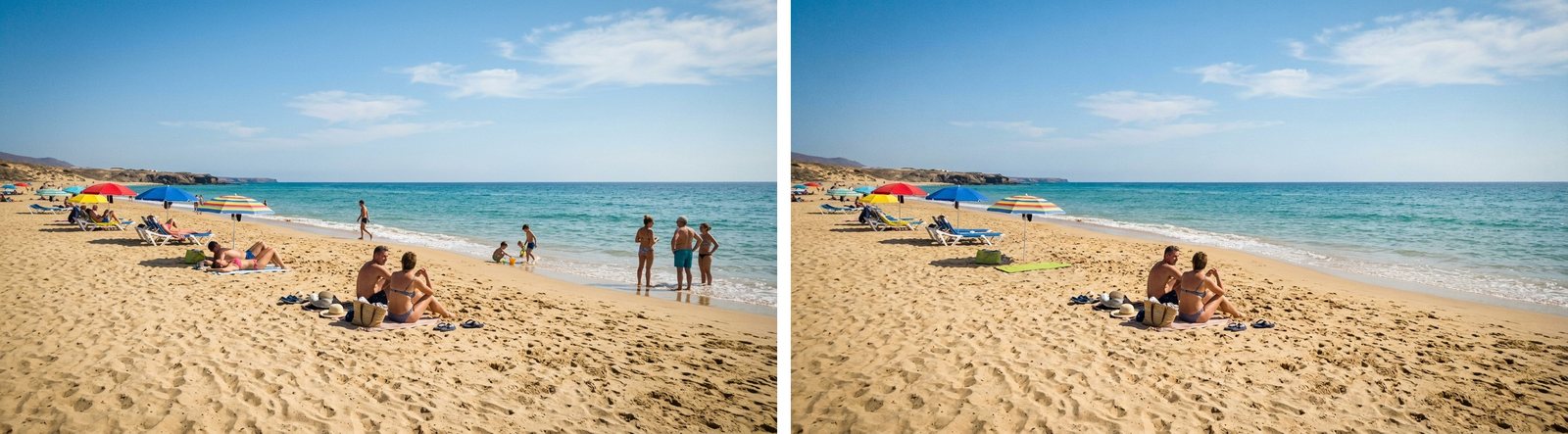
Take the first photo, the one that still has people in it. Keep only the couple sitting in the foreground, and remove the rest of the people.
After 22 seconds, one couple was left in the photo, in the same pose and with their things. The AI removed the sunbathers on the lounge chairs, the man by the water, the children, and the swimmers.
How to change a photo with AI from a description
The third request was about light, not objects. We took the photo without people.
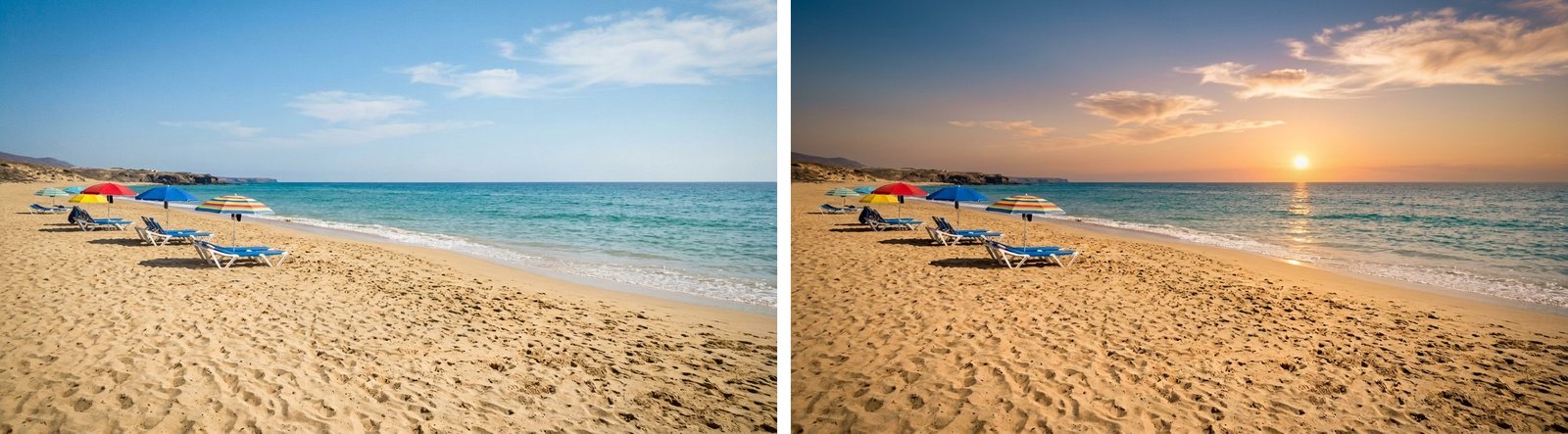
Change day to sunset in this photo: the sun low over the sea, warm light. Don't change anything else.
The AI did it in 23 seconds. The shore, the umbrellas, and the lounge chairs stayed where they were. A low sun appeared over the sea, a streak of reflected light appeared on the water, and the clouds are lit from below.
How to remove unwanted objects from a photo with AI
We tested the fourth edit differently: we opened a new conversation and gave the AI a photo file that was on the disk. That is how it gets your photo, too.
Take the photo plyazh-1.png and remove the umbrellas and lounge chairs from it. Leave the people and everything else as they are.
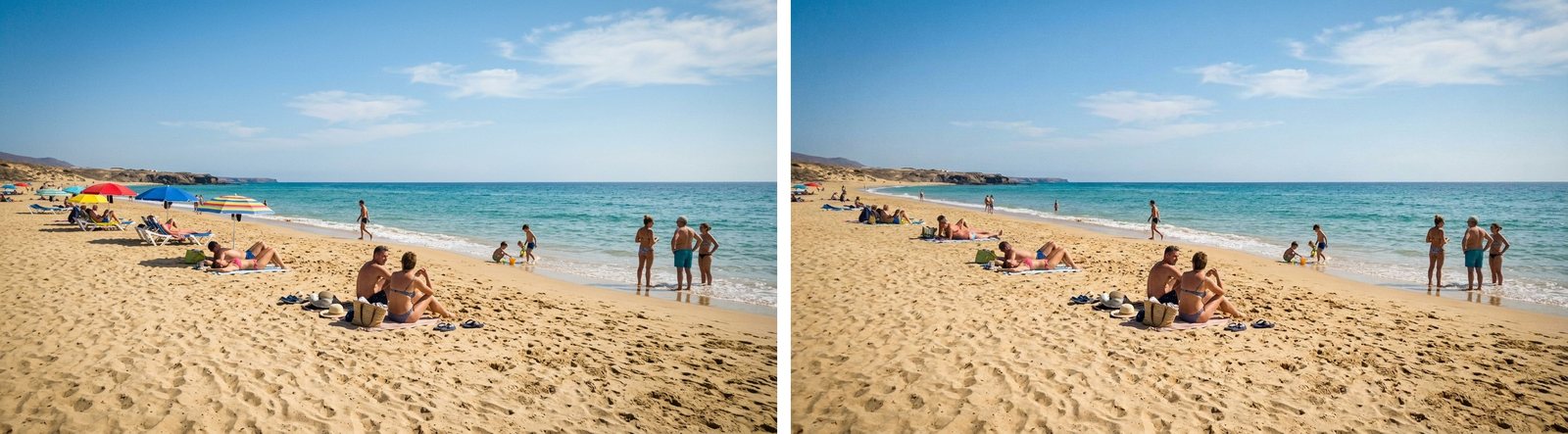
The file was outside the working folder, so the AI asked twice for permission to read it. Once it had permission, it removed the umbrellas and lounge chairs. The people stayed where they were: those who had been resting on lounge chairs are now lying on towels.
Where the AI got it wrong
- When we asked it to keep one couple, a small human figure was left at the left edge of the photo, near the far umbrellas. The AI pointed this out itself and offered to remove it.
- In the same photo, a green towel and a bag belonging to people the AI had removed were left on the sand. In the first edit, it removed such things along with their owners.
- In the sunset photo, the shadows of the umbrellas stayed short, as in the daytime, even though the sun is at the horizon. In its answer, the AI wrote that the shadows had grown longer.
- When we asked it to remove the umbrellas, the far umbrellas at the left edge stayed in place.
- All the versions were saved at 1376 by 768 pixels. That is enough for social media and a website, but not enough for print.
Where to edit a photo with AI
We tested the AI photo editor in the Yenisei Agent app. It is available for Windows, macOS, and Linux. The app saves each version of the photo as a separate file in a folder on your computer, and the original file is not changed.
In Yenisei Chat, the AI for photo processing works right in the browser, and there is nothing to install. No VPN is required.
What to choose
- One edit to one photo — the chat in your browser. Attach the photo to your message and describe what to change.
- Several edits in a row — Yenisei Agent. All the versions are kept as files in one folder, and you can go back to any of them.
- A photo for print — check the size of the result first: ours came out smaller than print requires.
Try it on your own task
The agent works in the app for Windows, macOS and Linux. Sign in with your email and a code from the message; the basic plan is free.