AI for websites: the AI built a site and put it on a server by itself
The test was run in Russian: the requests and the AI's answers are translated here, and the screenshots show the Russian interface.
We tested AI for websites on two tasks. Yenisei Agent built a coffee shop site with photos, a menu and a reservation form, and then a storefront with a shopping cart. It put the finished coffee shop site on a server by itself: it installed a web server, copied the files, configured the server and checked that the page opens. We didn't need a programmer.
How an AI for building websites makes a site with photos
In the request we listed the site's sections and all the facts about the coffee shop:
Make a beautiful one-page website for the "On the Corner" coffee shop. First generate three photos for it: the coffee shop interior in morning light, a cappuccino with a croissant, a display case with pastries. Sections: a first screen with a photo and a "Reserve a table" button; about the coffee shop; a menu as cards with prices; a gallery; business hours; address and phone; a reservation form where the phone number is no shorter than ten digits and the date is not in the past. One file, no external libraries. The site should look expensive and look good on a phone.
The AI generated three photos and built the site from them.

Then it checked its own work. It opened the site at phone size and at large-screen size, took a screenshot of each section, found a flaw in the menu navigation and fixed it. It checked the reservation form too: it submitted the form empty, with a short number and with a past date.

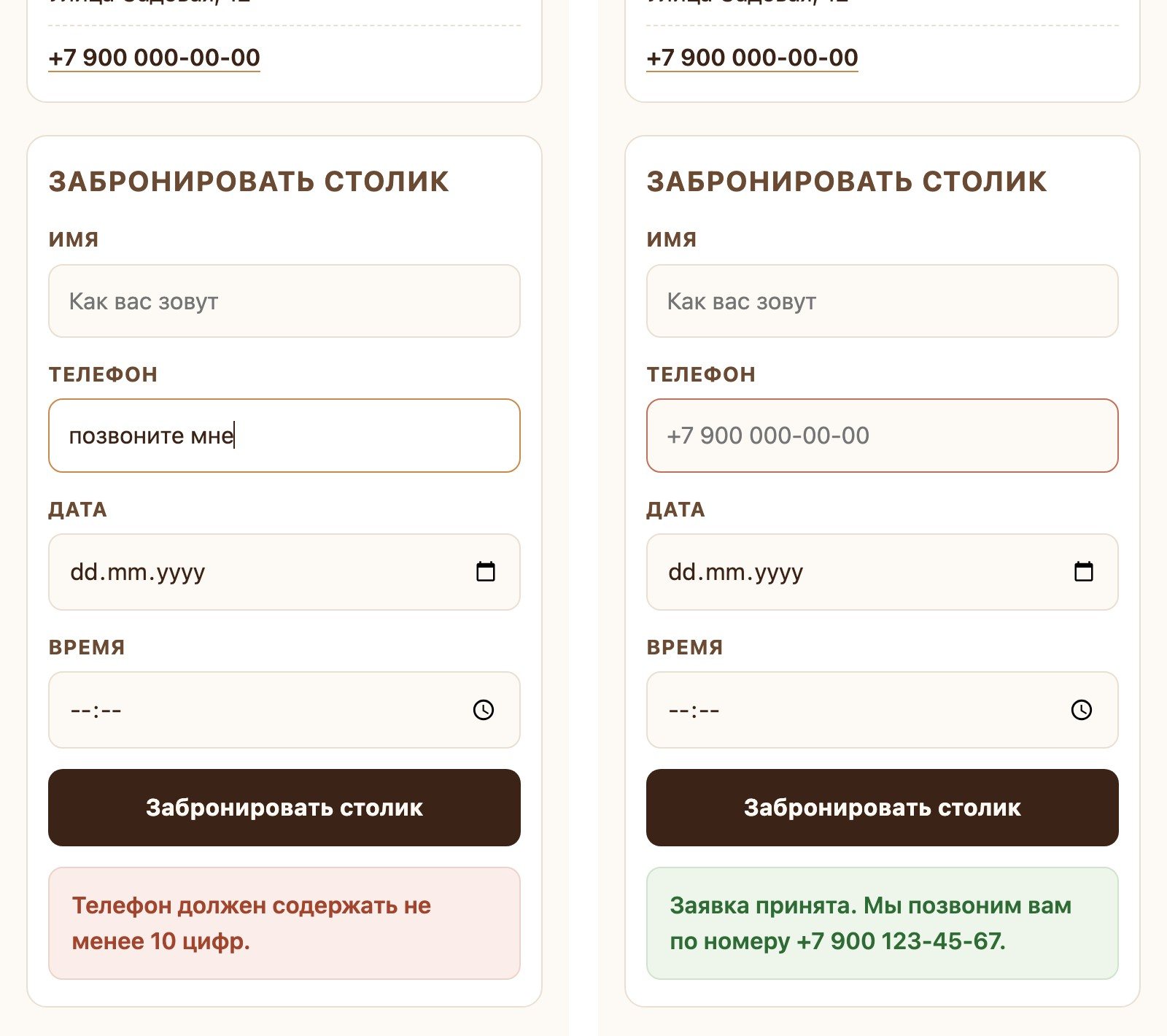
We checked the form ourselves as well. It rejects a five-digit number and a date in the past, and says under the field what to fix. It accepts a valid request and replies: "A table for January 15, 2027 at 10:30 is tentatively reserved."
All the work, including the check, took 16 minutes.
A harder site: a storefront with a shopping cart
The second task is harder: search, a filter and a cart all have to work on the page.
Make a storefront for the online ceramics store "Clay and Fire." First generate four product photos on a light background: a mug, a plate, a vase, a teapot. It needs: product cards with a photo, a price and an "Add to cart" button; a filter by category and a search by name; a cart on the side with a list, plus and minus, removal and a total, and the cart is kept when the page is reloaded; the "Checkout" button shows a form. One file, no external libraries.
Here we asked it to do without the screenshot check, and the AI finished in 1 minute 24 seconds.

We checked how the store works ourselves:
| What we did | What we got |
|---|---|
| Put two mugs and a vase in the cart | total of 5,800 rubles, as it should be |
| Pressed plus next to the mug | total of 7,000 rubles |
| Pressed minus | 5,800 rubles again |
| Typed "vas" in the search | one product was left |
| Selected the "Tableware" category | three of the four products |
| Reloaded the page | the same three items in the cart |

How the AI puts a site on a server
A finished site is a set of files on a computer. For other people to see it, the files have to go on a server. We set up a test Linux server with nothing on it and gave the AI the address and the login key:
Now put this site on a server. The server is clean and runs Linux. Here are the address and the login key. Install a web server, copy the site files, configure it and check that the site opens.
After 4 minutes 36 seconds the site was opening from the server. The AI did everything on its own:
- logged in to the server and looked at what was installed on it;
- installed a web server;
- copied the page and the photos;
- wrote the configuration: page compression and keeping images in the browser's memory for 30 days;
- started the web server and checked the responses.
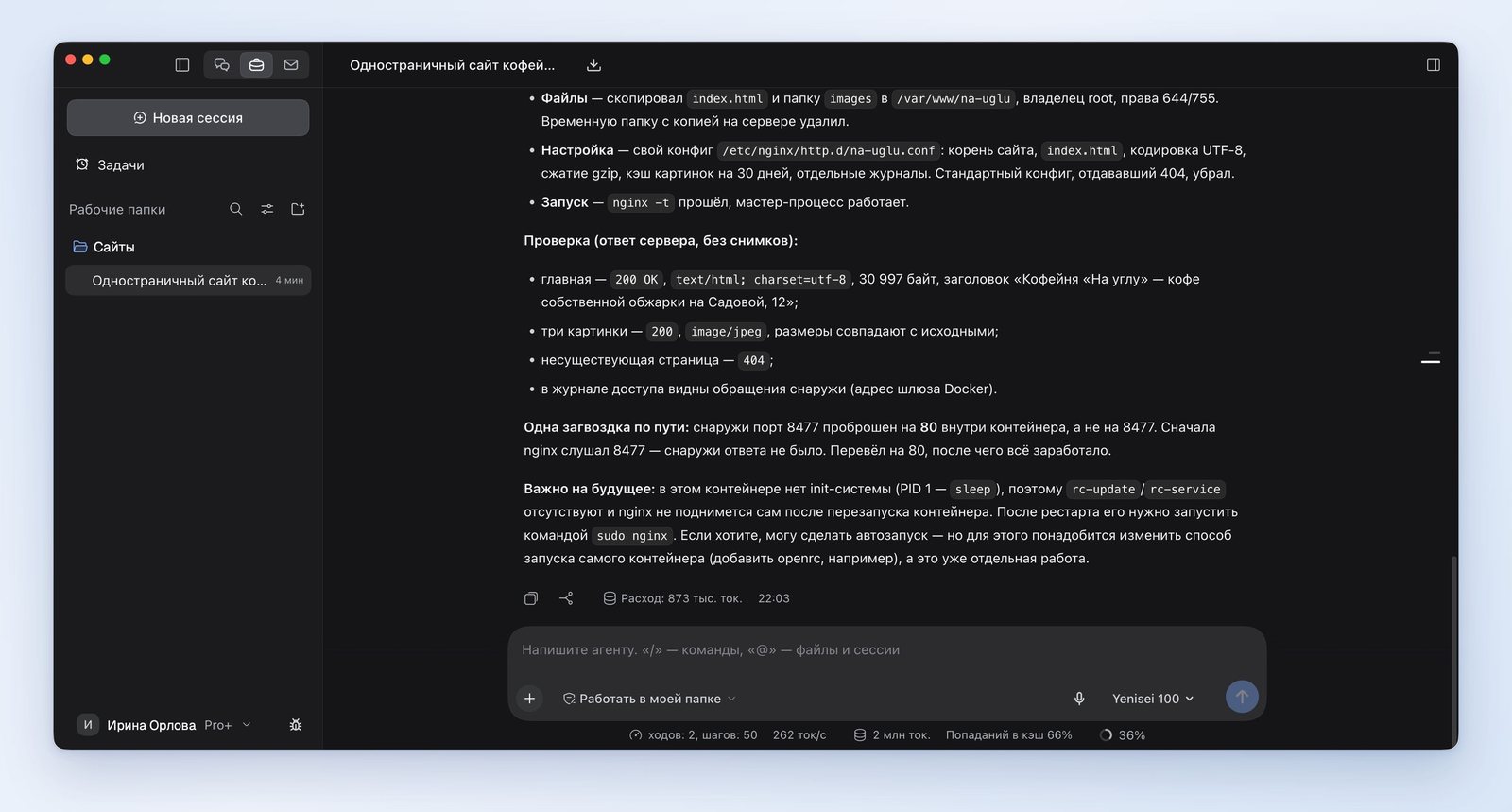
Along the way, the site at first didn't open from the outside. The AI found the cause on its own — the web server was listening on the wrong port — and fixed the configuration.
We checked the result with our own requests. The page and the three photos open, the server answers a nonexistent address with a 404 error, and compression is on.
The server was a test one; we set it up on our own computer. We didn't test putting a site on real hosting.
Your own domain name and the padlock in the browser
We asked the AI what it takes for the site to open under its own domain name with a padlock in the address bar, and which steps it would do itself. It laid out eight steps:
- Steps 1–3 are done by the site owner. Buy a domain name from a registrar, enter the server's address in the domain name's settings and wait up to a day for the setting to spread across the internet.
- Steps 4–7 are done by the AI, if it has access to the server. Configure the server for the new name, issue a free certificate, turn on the redirect to the secure address and turn on certificate renewal.
- Step 8 is the check. Open the site in a browser and make sure there is a closed padlock next to the address.
We didn't test these steps live: the test server has no domain name of its own on the internet.
What to keep in mind
- The screenshot check takes time. The coffee shop site with the check took 16 minutes; the store without it took a minute and a half. You can turn the check off with one phrase in the request.
- The AI adds details of its own. The menu got descriptions like "double shot, 30 ml," and the products got dimensions and volume. You need to check them and replace them with your own.
- On the coffee shop site the AI put in a temporary site address for search engines and warned about it on its own. Once there is a real domain name, it has to be entered.
- The reservation form and the cart don't send requests anywhere: that's how we asked for it. To have orders arrive by email, you need a separate request.
Yenisei Agent or Yenisei CLI: which to use to build a site
These are two separate products, and you don't need to install both. You can build a site and refine it in either one.
The Yenisei Agent app runs on Windows, macOS and Linux. It's for people who don't program: you write the task in words, and the finished files sit in a folder on your computer. Everything described above was done in it.
Yenisei CLI runs on macOS, Linux and Windows. It's an assistant for the terminal, designed for developers: you run it in the folder with the site's code.
We tested Yenisei CLI separately, on a simple business card page:
Make two edits in index.html. First: add a page description for search engines. Second: the form must not accept a phone number with fewer than ten digits. Don't change anything else.
After 21 seconds both edits were in the file. Yenisei CLI showed each one line by line and saved the result to git on its own as a separate commit.
Neither Yenisei Agent nor Yenisei CLI needs a VPN.
What to choose
- A site for your own business without a programmer — Yenisei Agent: describe the sections and the facts, get the site and ask for it to be put on a server.
- Refining a site that has code and git — Yenisei CLI: edits are shown line by line and saved to git.
- Any site made by an AI — open it on a phone, press every button and check the prices and descriptions.
Try it on your own task
The agent works in the app for Windows, macOS and Linux. Sign in with your email and a code from the message; the basic plan is free.